👤 Profile Basics

Home Room → Settings → Profile & Account is the one page for who you are, how you sign in, and how the platform should treat you. This overview covers every card on the page, what each setting changes, and the controls that deserve caution.

👤 Identity🔐 Sign-in🤝 Personalisation⚠️ Account controls
🧭

What the page covers

Profile Settings is a single scroll with distinct cards. Identity and sign-in come first, then personalisation, then billing and account controls. You do not need to fill every card — each one stands alone.

👤 Identity

Photo, display name, username, and account email.

🔐 Sign-in

Email change with verification, and password change.

🌍 Personal profile

ZIP, timezone, location, units, and preferred language.

🤝 Assistant persona

Companion name and conversation tone.

🎚️ Content preferences

The maturity ceiling for what you see.

⚠️ Account controls

Billing, analytics opt-out, and account deletion.

ℹ️Changes save per card.Your photo saves when you pick it; display name, personal profile, and assistant settings each have their own save button. Leaving the page without saving discards that card's edits.
🧭

Where to find it

From the Home Room sidebar, open Settings, then Profile & Account. Or go straight to /homeroom/settings/profile.

The header also links to Home Room, Billing, and Features, so you can jump to the related settings without going back through the sidebar.

💡Breadcrumb:Home Room → Settings → Profile & Account. The page title is “Profile Settings”; the sidebar entry is “Profile & Account”.
🗺️

The page at a glance

CardWhat it controls
ProfilePhoto, display name, email, password
Platform Email AddressYour @notaemail.com address (when enabled)
Account StatsLibrary items, bookmarks, member since, roles
Billing & SubscriptionPlan, status, renewal, upgrade
Content PreferencesMaturity filter and age verification
Personal ProfileZIP, timezone, location, units, language
Personal Assistant SettingsCompanion name and tone
PreferencesEmail preferences, dark mode, analytics opt-out
Danger ZonePermanent account deletion
ℹ️Some cards are conditional. Platform Email Address only appears when your account has email access, and the Generate with AI tab in the photo picker only appears for author accounts.
🖼️

Your photo

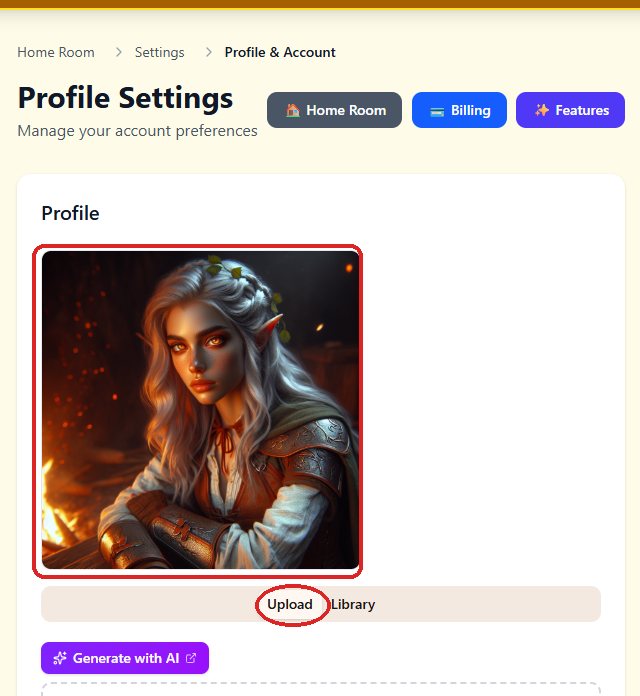
The Profile card starts with your photo. It is used across the platform — the top bar, your rooms, and discussions.

The Profile Settings header and Profile card, with the avatar outlined and the Upload tab circled in red
The Profile card. Click the photo (outlined) or the Upload tab (circled) to change it; Library picks an image you already have. Authors also see Generate with AI.

⬆️ Upload

Drag and drop or browse for a JPEG, PNG, WebP, or GIF up to 5 MB.

🗂️ Library

Pick from images already in your media library.

✨ Generate with AI

Author accounts can create a portrait instead of uploading one.

🧹 Remove

Remove image clears the photo without touching the rest of the profile.

💡Use a square image. The picker crops to 1:1, so a centered face or logo survives the crop best.
🏷️

Display name and username

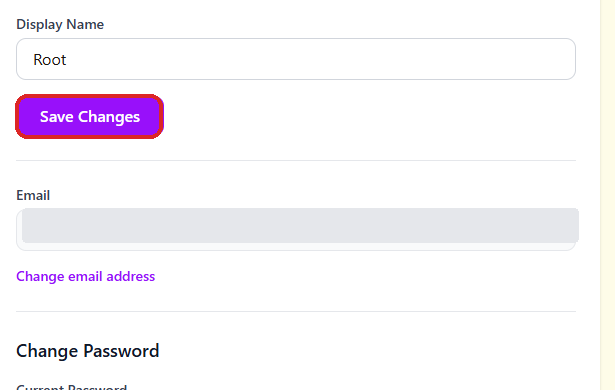
Display Name is what other members see in rooms, discussions, and mentions. Edit it and press Save Changes.

The Display Name field and Save Changes button circled in red, with the account email field redacted
Display Name and Save Changes (circled). The email field is read-only here; Change email address starts the verification flow. The account email is hidden in this screenshot.

The username (@handle) is shown under your name but is not editable on this page. Display name changes do not rename the handle or change your sign-in email.

⚠️Display names are public to your rooms. Use the name you want members and the assistant to address you by; avoid putting private information in it.
✉️

Email address

The email field is the address on your account, and it is read-only by default. To change it, click Change email address, enter the new address, and press Send Verification Email.

A verification link goes to the new address. The change is only completed after that link is opened — until then, the old address remains your account email. The link is valid for 24 hours.

🔗 Verify first

The link in the new inbox is what completes the change.

🚫 Already in use

An address attached to another account is refused.

⏳ Expired links

Request a fresh verification email if the old link has expired.

🔐 Sign-in identity

Your email is also how you sign in; update it before you lose access to the old inbox.

⚠️Never change your email to one you do not control. You need access to the new inbox to verify, and later to sign in and recover the account.
🔑

Password

Under Change Password, enter your current password, a new password, and the confirmation. The new password must be at least 8 characters, and both new entries must match.

8️⃣ Minimum length

8 characters is the hard floor; a longer passphrase is better.

🔄 Current password required

The form verifies the existing password before changing anything.

✅ Success state

A green confirmation appears after the change.

🔗 Social-only accounts

If you sign in only with Google or another provider, there may be no password to change.

💡Use a password manager. A unique passphrase you do not reuse elsewhere is the simplest upgrade to account security.
🌍

Personal profile

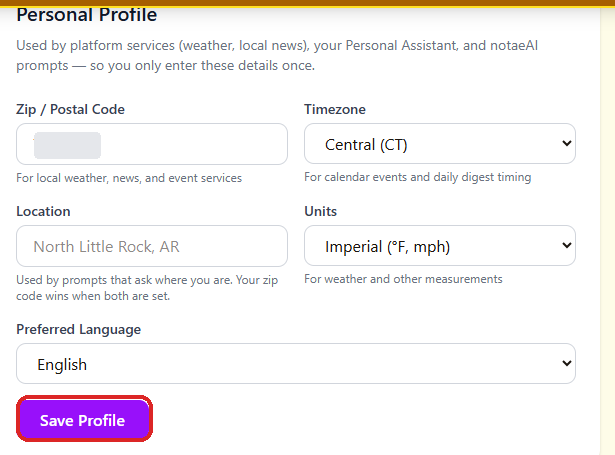
Personal Profile holds the facts platform services reuse: ZIP/postal code, timezone, location, units, and preferred language. Fill it once instead of retyping it for weather, local news, calendars, the Personal Assistant, and notaeAI prompts.

The Personal Profile form with the ZIP value redacted and the Save Profile button circled in red
Personal Profile: ZIP, timezone, location, units, and language. Save Profile (circled). The real ZIP is redacted in this screenshot.

📍 ZIP / postal code

Drives local weather, news, and events. It wins over the location text when both are set.

🕰️ Timezone

Sets calendar event times and daily digest timing. “Auto-detect” uses the browser.

🗺️ Location

A human-readable place used by prompts that ask where you are.

📏 Units and language

Imperial or metric for measurements; the language for localized surfaces.

ℹ️Save Profile is separate. The button at the bottom of this card saves only these fields; it does not save the display name or assistant settings above and below it.
🤝

Personal Assistant settings

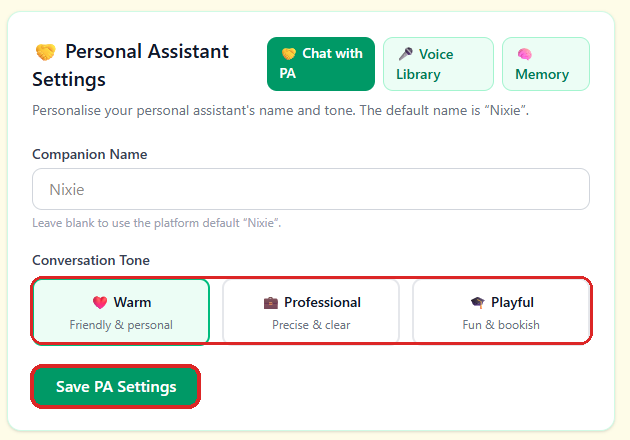
Personal Assistant Settings changes how your assistant presents itself. The default companion name is “Nixie”; leave the field blank to keep it.

Personal Assistant Settings with the tone cards outlined and Save PA Settings circled in red
Companion Name, the three tone cards (outlined), and Save PA Settings (circled).

🏷️ Companion name

What the assistant calls itself in conversation. Up to 40 characters.

❤️ Warm

Friendly and personal — the default tone.

💼 Professional

Precise and clear, with less small talk.

🎓 Playful

Fun and bookish, with a lighter voice.

The card also links to Chat with PA, the Voice Library, and Memory, so you can move from persona settings to the assistant itself.

💡Save PA Settings is separate from Save Profile. Change the name or tone, press its own button, and the next conversation uses it.
🎚️

Content preferences

Content Preferences sets the maximum maturity level you want to see in search results, browse pages, and recommendations.

LevelWhat it allows
GeneralAll ages; no objectionable content.
Teen (13+)Mild language, mild violence, romantic themes; PG-13-like.
Mature (17+)Strong language, graphic violence, non-explicit sexual themes, drugs/alcohol.
Explicit (18+)Explicit sexual content, extreme violence, graphic drug use; adults only.
⚠️Mature and Explicit require age verification. The page asks you to confirm before raising the filter, and the setting may be locked for your account. Raising it changes what appears across the platform, not just one page.
💳

Billing and subscription

The Billing & Subscription card shows your current plan, whether it is active, and the renewal date. From here you can open Manage Billing, Upgrade Plan, or View Pricing.

📋 Current plan

The plan name and monthly price, or “Reader (Free)” when there is no paid subscription.

✅ Status

Active or Free Tier, with the renewal date when one exists.

🧾 Manage Billing

Payment method, invoices, and subscription controls.

⬆️ Upgrade

Compare plans and change tier from the pricing page.

📊

Account stats and platform email

Account Stats is read-only: items in your library, bookmarks, the month you joined, and your platform roles. Roles are assigned by the platform and are not editable here.

When your account has email access, Platform Email Address shows your personal @notaemail.com address, separate from your sign-in email. If it is not claimed yet, use Claim address; once you send or receive your first message, the address becomes permanent.

ℹ️Platform email is not your login. Claiming or using it does not change the account email above, and vice versa.
⚙️

Preferences

Preferences collects the smaller switches:

✉️ Email Preferences

Opens the page that controls which address receives newsletters and other email.

🔔 Email Notifications

The notifications row is informational in this build; use Email Preferences for delivery controls.

🌙 Dark Mode

Currently disabled and marked “coming soon”; use the theme toggle in the top bar for now.

📉 Analytics Opt-Out

Saves immediately when toggled: disables usage analytics and session recording for your account.

⚠️

Danger zone

Delete Account permanently deletes your account, reading progress, bookmarks, and personal data. It asks for confirmation and cannot be undone.

1

Export first, if you want a copy

Use the privacy export page to download your data before deleting anything.
2

Check what you are leaving behind

Deletion is not a “pause”. If you only want to leave a room or stop notifications, use those controls instead.
3

Confirm deliberately

The confirmation exists because there is no recovery path.
⚠️Deletion is permanent. If you only want to leave a room or stop notifications, use those controls instead of deleting the account.
💡

Best practices

💡Fill the personal profile once. ZIP, timezone, and language make weather, calendars, digests, and the assistant behave correctly without repeating yourself.
💡Use a recognizable display name and photo. They are how collaborators and the assistant identify you in rooms.
💡Keep the email current. It is your sign-in and recovery address; update it before losing access to the old inbox.
💡Match the assistant tone to the work. Professional for focused rooms, Warm or Playful for casual ones.
⚠️Review the content filter deliberately. It changes what you see platform-wide, and raising it may require age verification.
❓

FAQ

▶I changed my display name but other pages still show the old one.

Some surfaces cache names briefly. The profile page revalidates immediately; a refresh on the other page should show the new name.

▶Can I change my @username here?

No. The handle is shown under your name but is not editable on Profile Settings.

▶I changed my email and nothing happened.

The change needs the verification link sent to the new address. The old email stays active until you open that link.

▶There is no password form / it says I have no password.

Accounts that sign in only through a social provider may not have a password. Use that provider to sign in.

▶What does the ZIP code change?

Local weather, news, events, and prompts that ask where you are. When both ZIP and location are set, the ZIP wins.

▶Does the assistant tone change its answers?

It changes the voice and style of the assistant, not the facts it can access.

▶Why is the content filter locked?

Mature and Explicit levels require age verification, and an account can be locked to a maximum level. The page explains the reason when it is locked.

▶Can I undo deleting my account?

No. Deletion is permanent and removes your reading progress, bookmarks, and personal data. Export anything you want to keep first.

🚀

Keep going

Make the platform yours

A photo, a current email, and a filled personal profile go a long way.

👤 Open Profile Settings →