NotaeLibrary
🏠 Home Room
A basic tour of the Home Room Hub — the quick links, greeting, widget grid, and room sidebar that summarise everything across your rooms.
🏠 Personal dashboard🗂️ All your rooms🔒 Private to you
On this page
🏠
What the Home Room Hub is
Every member is given a Home Room when they join. It is not a Study Room you join — it is your own dashboard at /homeroom, and its page title is Home Room Hub.
The Hub pulls activity from every room you belong to into one screen: quick links to the aggregated views, a greeting with your unread count, and widgets for bookmarks, the gallery, your feed, tasks, events, and reading activity.
🧭
One place to start
Open the Hub instead of checking each room one by one.
📊
Summary, not a copy
Widgets preview what is happening; the actual conversations live in their rooms.
🔒
Private to you
Your Hub, bookmarks, and reading progress are yours; only you see this page.
🚪
A launchpad
Every card and quick link takes you to the full view it summarises.
ℹ️Home Room vs Study Room. A Study Room is a shared space you join to read with other people. Your Home Room is the private dashboard that collects the result of everything you do in them.
🧭
Where to find it
Open 🏠 Home Room in the top bar, or click Root's Home at the top of the room sidebar. The direct URL is /homeroom.
The Home Room dropdown in the top bar also links to My Feed, My Readingshelf, My Calendar, NotaeAI, My Workspace, Staff Teams, and Settings. Those are focused views; the Hub is the overview that links to them.
💡The top bar and the sidebar are different. The top bar is platform navigation (Front Desk, Home Room, notifications, theme, account). The sidebar is your room list.
🗺️
The page at a glance
The Hub has four zones, top to bottom: the header with the quick links, the greeting banner, the widget grid, and the room sidebar on the left.
🔗
Quick links
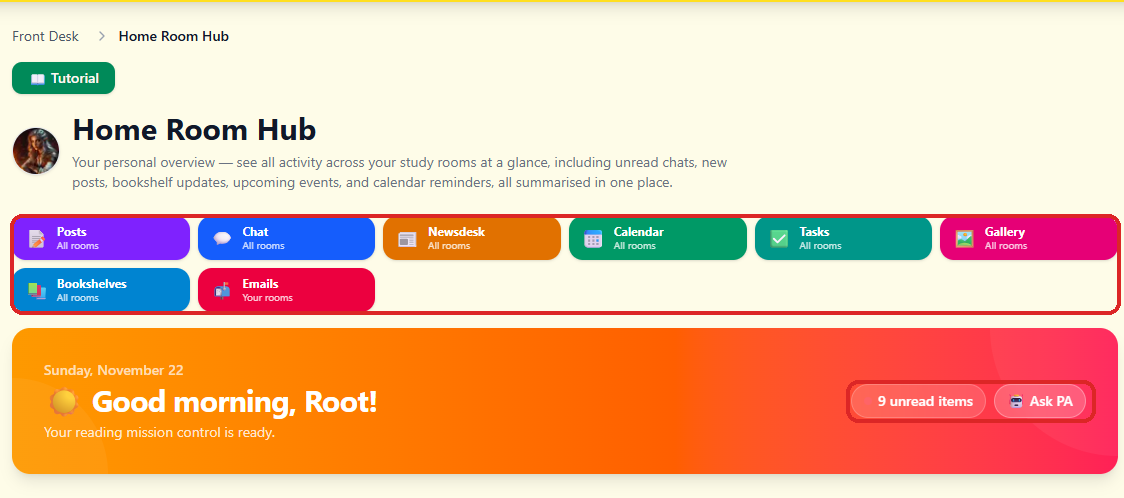
Jump to Posts, Chat, Newsdesk, Calendar, Tasks, Gallery, Bookshelves, or Emails across your rooms.
☀️
Greeting
The date, your name, your unread count, and the Ask PA shortcut.
🧩
Widgets
Bookmarks, Recent Gallery Images, Your Rooms' Feed, Tasks, Upcoming Events, Your Activity, and My Family Tree.
🗂️
Room sidebar
Your Home Room link, a room search box, and the rooms you belong to.
💡Scan, then jump. Use the Hub to see what changed, then follow a link or a widget into the full page when you want to act.
🔗
The eight quick links
The coloured buttons under the title are the fastest way around the Hub. Seven say All rooms; Emails says Your rooms.
📝
Posts
New posts and updates across the rooms you belong to.
💬
Chat
Recent conversations and unread messages.
📰
Newsdesk
News items and feeds collected by your rooms.
📅
Calendar
Events, sessions, and reminders from your rooms.
✅
Tasks
Tasks assigned to you or your rooms.
🖼️
Gallery
Images recently added across your rooms.
📚
Bookshelves
The shared bookshelves of your rooms.
📬
Emails
Your rooms' email activity (only your rooms, not all rooms).
ℹ️Quick links are aggregated views. They gather items from every room in scope, so you do not have to open each room to see what is new.
☀️
Greeting and Ask PA
The greeting banner shows the date, a time-of-day greeting, and a short line about the Hub. On the right are two shortcuts:
🔔
Unread items
Opens your Home Room feed, where the unread items are listed. The number is the count across your rooms.
🤖
Ask PA
Opens your Personal Assistant, ready to answer questions about your rooms and saved material.
The widgets below the banner use the same scope, so the feed badge and the unread count should tell the same story.
🧩
The widgets
The widget grid is the substance of the Hub. Each card is a preview with a link to its full page.
🌳
My Family Tree
People, claimed profiles, and invitations. Opens the tree; it can be empty at first.
🔖
Bookmarks
Items you saved to come back to. Each row links to the item; Remove clears a bookmark.
🖼️
Recent Gallery Images
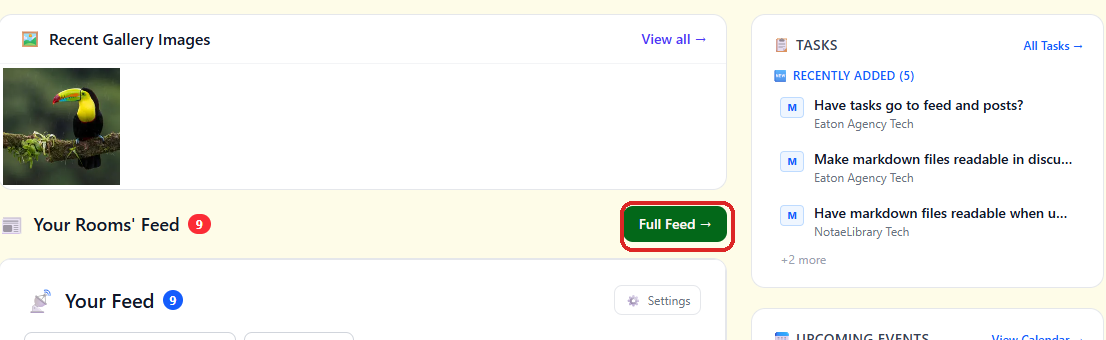
The latest images from your rooms, with View all.
📰
Your Rooms' Feed
Posts and updates with filters for room, type, and unread only. Full Feed opens the dedicated feed page.
📋
Tasks
Recently added and due work. All Tasks opens the task page.
📅
Upcoming Events
The next events across your rooms; View Calendar opens the calendar.
📊
Your Activity
Reading streak, books tracked, study rooms, and unread items.
📬
Recent Email
The latest messages in your rooms' inbox (when email access is enabled), with All Emails.
⚠️Some widgets depend on your rooms. Gallery, feed, tasks, and events only have content when the rooms you belong to have it. A quiet Hub is not broken — it is quiet.
🔒
Private vs shared
It helps to know what is yours and what is the room's:
| Surface | Who sees it |
|---|---|
| Home Room Hub | Only you |
| Bookmarks and reading progress | Only you |
| Posts, chat, tasks, gallery, events | The room they belong to |
| Shared bookshelves | The room's members |
ℹ️Actions happen in the room. The Hub previews and links; replies, posts, and task changes still belong to the room that owns them.
🚀
Your first five minutes
- Open the Hub and scan the eight quick links.
- Check the unread count, then open the feed.
- Open one room from the sidebar and read its latest activity.
- Bookmark one thing you want to come back to.
- Ask PA one question about something in your rooms.
💡That is enough to understand the Hub. Everything else — feeds, reading, rooms, notebooks — is a variation on those five actions.
🧭
Where to go next
🏠📘📚👤🔖📡
Open your Home Room
Go straight to the Hub you just read about.
The Basics
What the platform is, in one page.
Study Rooms
What a room is, how to join one, and how to create your own.
Profile Basics
Your photo, display name, email, personal profile, and assistant.
Bookmarks
Save something to come back to, without keeping it.
The Home Room Feed
How the aggregated feed works and how to filter it.
Everything in one place
Start at the Hub, then jump to the room or view that needs you.