NotaeLibrary
📡 Adding RSS & News Feeds
An RSS / News Feed is a subscription, not a single saved link. Add a blog, news site, or YouTube channel once, and the room's Newsdesk keeps filling with its latest items. This guide covers the dedicated page, previewing before you commit, and where the articles appear.
📡 RSS📰 News Feeds▶️ YouTube channels🛡️ Contributor+
On this page
📡
What an RSS / News Feed is
An RSS / News Feedis a standing subscription. You give the room a feed URL once, and the platform keeps pulling that source's latest items into the room's Newsdesk and feed.
That is different from a Web Link / Article, which saves one page. A feed is a source: new articles arrive after you add it, without anyone pasting another URL.
🔁 Keeps updating
New items appear as the source publishes them — no repeat work.
📰 Lives in the Newsdesk
The feed's articles are read in the room's Newsdesk and feed, not as one card on the bookshelf.
🎛️ Named and categorised
You choose a display name and an optional category to keep the Newsdesk organised.
▶️ YouTube channels count
A channel URL is resolved to its feed, so new videos flow in too.
ℹ️One subscription, many rooms. The same feed is shared by the platform; each room subscribes to it with its own display name and category.
🧭
Feed, link, or library work?
| Source | Use it for |
|---|---|
| 📡 RSS / News Feed | A source that keeps publishing — a blog, news site, podcast, or YouTube channel. |
| 🔗 Web Link / Article | One specific page you want on the shelf today. |
| 📚 From My Library | A catalog work you have already saved and collected. |
| 📄 New Document | Original content the room will write and edit. |
💡One article or the whole source? If you only care about a single page, use a Web Link. If you want the next articles too, subscribe to the feed.
🔐
Who can add a feed
Feed subscription is restricted to contributors, moderators, and the owner. A plain member cannot add a feed; the page sends them back to the bookshelf.
👑 Owner / 🛡️ Moderator
Can add, preview, and manage feeds.
✍️ Contributor
Can add feeds — the feed action accepts any non-Member role.
👤 Member
Can read the Newsdesk, but cannot add or remove feeds.
⚠️Two switches must be on.The platform must have RSS enabled, and the room's News Desk must be enabled. If the News Desk is off, the page says so; the feed can be saved but its articles stay hidden until the room owner turns it on.
🧰
Before you start
🔗 The feed URL
A direct RSS 2.0, Atom, or RDF URL — not the site's home page. Most sites expose it as /feed, /rss, or /rss.xml.
▶️ Or a YouTube channel
A channel URL works too: youtube.com/@handle, /channel/ID, or /c/name.
🏷️ A display name
Optional, but useful when the raw feed title is cryptic. Preview auto-fills it from the feed.
🗂️ A category
Optional. Categories group articles on the Newsdesk / News Feed page.
ℹ️Find the feed, not the website.Pasting a normal page URL usually fails. Look for the orange RSS icon or a “Subscribe” link on the site.
🧭
Where to find it
On the room's Add to Bookshelf page, the From the web section holds the 📡 RSS / News Feed card. It opens the dedicated page.
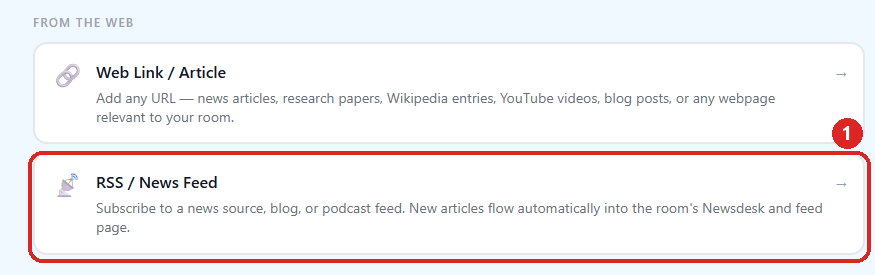
The page lives at /study-rooms/<room>/bookshelf/add/rss.
🖼️
The RSS / News Feed page
The page has one job: prove the feed works before the room subscribes. Paste the URL, choose Preview Feed, and the page fetches the latest items.
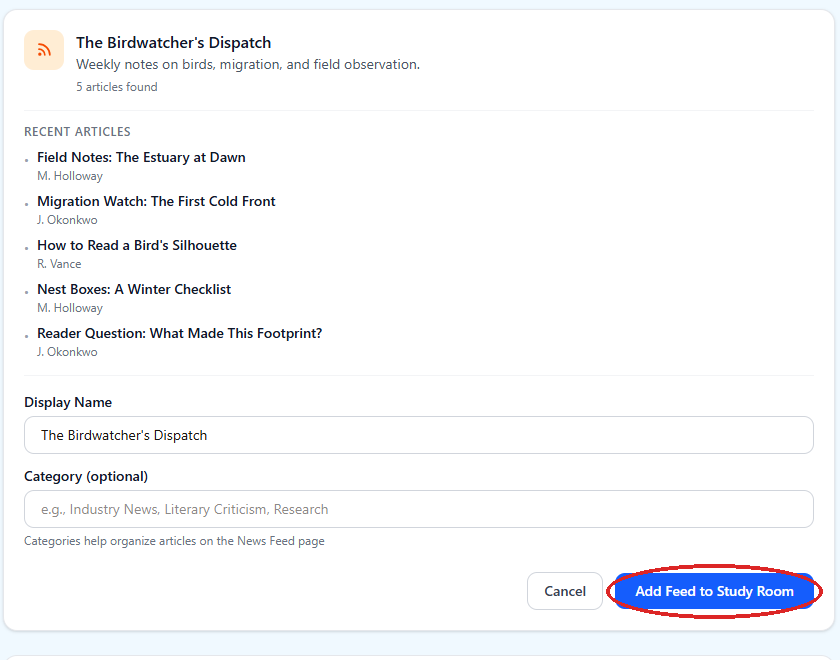
🔗 RSS / YouTube URL
The feed address. The preview button stays disabled until there is one.
👁️ Preview Feed
Fetches the feed without subscribing. Nothing is saved yet.
🏷️ Display Name
Auto-filled from the feed title; edit it to suit the room.
🗂️ Category
Optional grouping for the articles on the Newsdesk / News Feed page.
➕
Step by step
1
Open the room's Add to Bookshelf page
Bookshelf → Add Knowledge to Bookshelf.
2
Open RSS / News Feed
In From the web, click 📡 RSS / News Feed.
3
Paste the feed URL
Use the RSS, Atom, or RDF address — or a YouTube channel URL. A detected YouTube channel gets a red notice under the field.
4
Preview Feed
Click Preview Feed. The page fetches the source and shows its title, description, item count, and five recent articles (or videos).
5
Check that it is the right feed
If the titles do not match what you expected, change the URL and preview again. Nothing has been saved so far.
6
Set Display Name and Category
The display name is auto-filled; adjust it if needed. A category is optional but useful for a busy Newsdesk.
7
Add Feed to Study Room
Click Add Feed to Study Room. The page confirms with a toast and takes you to the room's News Desk, where the feed's articles now appear.
💡Cancel resets the preview, not the page.Inside the preview card, Cancel clears the URL and the preview so you can start again. The page's own ← Back to Add to Bookshelf link leaves the page.
🌐
Supported sources
| Source | What happens |
|---|---|
| RSS 2.0 | Parsed directly; title, description, items and dates are read. |
| Atom | Supported; the same preview and subscription flow. |
| RDF / RSS 1.0 | Supported where the feed is well-formed. |
| YouTube channel | Resolved to the channel's video feed; preview shows recent videos. |
ℹ️YouTube channels:use the channel page URL, not a single video URL. The platform resolves it to the channel's feed; a video belongs on the Videos page or in a Web Link instead.
✨
How preview behaves
Preview is deliberately read-only. It calls the feed, parses the response, and shows:
🏷️ Feed identity
Title, description, and the feed's image.
🔢 Item count
How many articles the feed currently holds.
📰 Five recent items
Titles, authors, and dates — enough to judge the source.
⚠️ Clear errors
An unreachable or invalid feed shows the reason; nothing is saved.
⚠️Some feeds cannot be previewed. Private, paywalled, bot-blocked, or malformed feeds may fail. If the feed works in a feed reader but not here, the platform may be unable to reach that host.
🗄️
What gets saved
Adding a feed subscribes the room to a shared feed record. The room keeps its own display name, category, who added it, and when.
📡 The feed
URL, title, description, image, type, and language.
📰 Initial items
The latest entries are pulled in when the feed is first added.
🏷️ Room subscription
Display name and category are stored per room.
🚫 Duplicates refused
If the room already subscribes to that feed, the page reports it instead of adding twice.
ℹ️The feed is not a shelf card.Unlike a Web Link, an RSS subscription does not appear as one item on the bookshelf. It lives in the Newsdesk and the room's feed — the card on the add page is simply where you start.
🔁
After adding
1
You land on the News Desk
The room's News Desk opens with the feed in its RSS tab and the combined All view.
2
Read the latest items
Articles show their title, author, date, and summary. A pinned item can sit at the top of the desk.
3
New items arrive automatically
The platform refreshes subscribed feeds on its sync schedule, so the room does not need to re-add anything.
4
Manage the feed
Owners and moderators can change the display name or category, or remove the subscription, from the room's feed management.
💡Feed vs. shelf: the articles are read in the Newsdesk; the shelf card you clicked was the subscription door, not the destination.
🔑
Who can do what
| Action | Member | Contributor | Moderator / Owner |
|---|---|---|---|
| Read the News Desk | ✅ | ✅ | ✅ |
| Open the RSS page | — | ✅ | ✅ |
| Preview a feed | — | ✅ | ✅ |
| Add a feed | — | ✅ | ✅ |
✅ always · — never. The feed action accepts contributors, moderators, and owners; plain members are refused.
💡
Best practices
💡Preview before you commit. The five-item preview tells you whether the feed is the one you meant and whether it is active.
💡Name it for the room.A feed title like “Dispatch” is less useful than “Estuary Conservation News”. The display name is what the room reads.
💡Use categories for a busy desk. Two or three categories (News, Research, Craft) keep the Newsdesk readable.
💡Pick feeds that publish at a useful pace. A feed that posts twenty times a day will bury the rest of the Newsdesk.
⚠️Check the room's News Desk switch. A feed added while the desk is disabled will not be visible until the owner turns it on.
❓
FAQ
▶The Preview Feed button is disabled.
It needs a feed URL. Paste the RSS, Atom, RDF, or YouTube channel address first.
▶Preview says the feed could not be fetched.
The URL may not be a feed, the site may be unreachable from the platform, or the feed may be private. Check the address in a feed reader and try again.
▶Can I subscribe to a YouTube channel?
Yes — paste the channel URL (youtube.com/@handle, /channel/ID, or /c/name). The platform resolves it to the channel's video feed. For one video, use the Videos page or a Web Link.
▶It says the feed is already added.
This room already subscribes to that feed. Open the Newsdesk to read it; there is nothing to add.
▶Why can't a member add a feed?
Feed subscription is limited to contributors, moderators, and owners. A member can read the Newsdesk but cannot add or remove feeds.
▶RSS is disabled. What now?
The platform administrator has turned RSS off, or the room owner has disabled the News Desk. Ask the room owner; the feed can be saved but will not display until it is enabled.
▶I added the feed but see no articles.
New feeds are synced after they are added, and articles appear in the Newsdesk's RSS tab. If the source has no recent items, the desk stays empty until it publishes.
▶Does the feed appear as a bookshelf card?
No. A feed is a subscription, not a single shelf item. It appears in the Newsdesk and the room's feed; the add-page card is only the entry point.
🚀
Try it on a real room
Open the example room's RSS page, or continue with the rest of the bookshelf.
📡→📚→🔗→📺→🎓→
Open the RSS / News Feed page
Preview a feed for Distracted by Birds.
Bookshelf Knowledge
How saved sources, documents, and videos become one room knowledge base.
Adding Web Links & Articles
Save one page instead of subscribing to a source.
Adding YouTube Links
Add a single video or playlist to the Videos shelf.
All tutorials
Browse the full tutorial library for more guides.
Subscribe once, read the updates
Preview the feed, name it, and let the Newsdesk fill itself.