NotaeLibrary
📚 Adding From My Library
Books, serials, and audiobooks you have already saved can be shelved in a room without re-uploading anything. This guide covers the “From My Library” page, choosing a work, adding notes and a discussion channel, and what the room gets afterwards.
📚 My Library🗂️ Saved works🧠 Indexed🛡️ Permissioned
On this page
📚
What From My Library means
From My Libraryadds a work you have already saved to your personal library to the room's bookshelf. The work stays a catalog work — it is not copied, re-uploaded, or turned into a room document. The room gets a shelf entry that points at it.
That is different from the other source cards on the add page:
| Source | What it means |
|---|---|
| 📚 From My Library | A catalog work you have saved and collected — the subject of this guide. |
| ✍️ My Works | A work you published yourself. Similar shelf entry, different source. |
| 📄 New Document | An editable Room Document written or uploaded in the room. |
| 🔗 Web Link / Article | A URL that is not a saved catalog work. |
💡Choose the source by ownership.Saved someone else's work? My Library. Published your own? My Works. Writing something new? New Document.
🗂️
What appears on the page
The page lists the works in your personal library collections, one card each, with the cover, title, author, type, and description. The card you select gets a blue border and a check mark.
✅ Already-shelved works are hidden
Anything already on this room's bookshelf is filtered out, so the page never offers a duplicate.
🎯 One work at a time
You select one card, add optional notes, and submit. Repeat for the next work.
📚 Library, not catalog
The catalog is the whole platform; My Library is what you have saved into your own collections.
🏠 Per-room filtering
The same library is read for every room, minus the works that room already has.
ℹ️Where the list comes from: your personal library collections. If a work is missing, confirm it is saved in one of those collections — and that the room does not already have it.
🔐
Who can add a work
Adding a library work is governed by the room's bookshelf permission level.
👑 Owner / 🛡️ Moderator
Always can add, and their additions never need approval.
✍️ Contributor
Can add when the room allows moderators and contributors, or all members.
👤 Member
Can add only when the room's bookshelf is open to all members.
⚠️Owner-only rooms stay owner-only. If the bookshelf permission is set to owner only, even contributors and moderators will not see this page — the room redirects them back to the bookshelf.
🧰
Before you start
Two things make this page useful the first time you open it.
💾 Save the work first
The page can only show works already saved in your personal library collections. Save the work, then open this page.
💬 Know why it belongs
A sentence on why the room is reading it will become the shelf note — and the seed of the discussion channel.
ℹ️Works already on the shelf will not appear.That is intentional. If you cannot find a work you expected, check the room's Works page before assuming it is missing.
🧭
Where to find it
On the room's Add to Bookshelf page, the From your collection section now holds a From My Library card. It shows how many of your library works are available and opens the dedicated page.
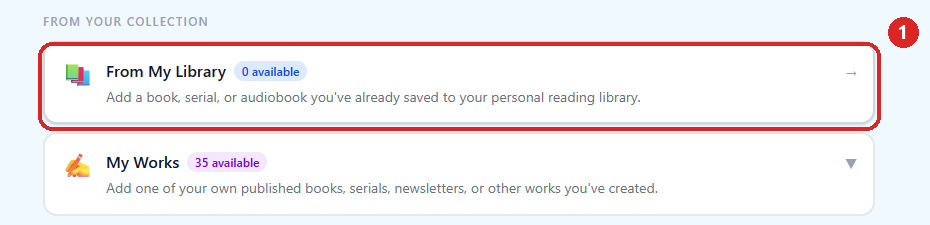
The card is a page link, not an expandable panel — the work list, selection, notes, and submit button all live on /study-rooms/<room>/bookshelf/add/mylibrary. The My Works card beside it still expands in place.
🖼️
The From My Library page
The page repeats the room context — breadcrumb, room header, and the Tutorial button — then lists the available works. Its empty state is honest and useful:
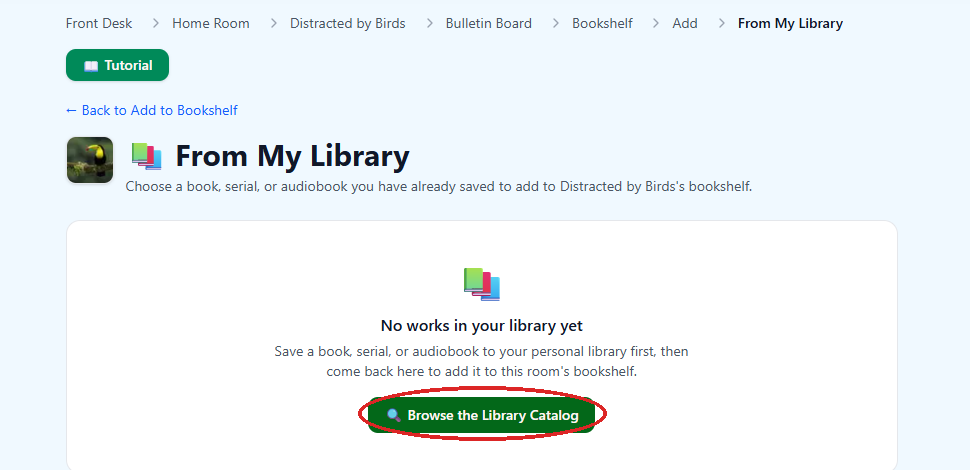
With works saved, that space holds a card per work. Each card shows the cover, title, author, a type badge, and the description; selecting one turns its border blue and shows a check mark. Below the list, the selected work's Notes, discussion toggle, and submit button appear.
💡The empty state is not an error. It means your personal library has no works saved yet — not that the page is broken.
➕
Step by step
1
Open the room's Add to Bookshelf page
Go to the room's Bookshelf, then choose Add Knowledge to Bookshelf.
2
Open From My Library
In From your collection, click the 📚 From My Library card. It opens the dedicated page.
3
Select the work
Click a work card. The selected card gets a blue border and a check mark, and the notes area appears below the list.
4
Add notes (optional)
Write why the room is adding it, what to look for, or a discussion prompt. The notes are stored on the shelf entry and indexed alongside the work.
5
Choose the discussion channel
Create discussion channel is on by default. Leave it on to give the work its own place to talk; turn it off for a quiet reference shelf.
6
Submit
Click Add to Bookshelf — or Submit for Approvalwhen the room requires it. You are returned to the room's bookshelf.
7
Repeat for other works
Open the page again for the next work. Each submission is one work; there is no bulk add.
💡Cancel goes back, not home. The Cancel button returns to the Add to Bookshelf page; the ← Back to Add to Bookshelf link at the top does the same.
⚙️
What gets added
Submitting creates a bookshelf entry linked to the catalog work. The work itself is not duplicated, so every room shares the same work — but each room gets its own shelf entry, notes, and discussion.
📚 Shelf entry
The work appears under 📚 Works on the bookshelf, with you as the contributor.
🧠 Chapter knowledge
The work's title, description, notes, and published chapter text are indexed for the room's assistant.
💬 Discussion channel
When enabled, the work gets a dedicated channel and you are subscribed to its discussion.
📝 Your notes
Notes are saved on the shelf entry — they are room context, not an edit to the catalog work.
ℹ️One work, many rooms. Shelving a work in another room creates a separate entry there. Notes and discussion stay with the room that made them.
🛡️
Approval
If the room requires approval and your role is not owner or moderator, your submission starts as pending. The page shows an Approval Required notice, and the submit button reads Submit for Approval.
Owners and moderators add directly as approved. Pending works are visible to moderators on the bookshelf home for review; they are not indexed while they wait.
🔁
After adding
1
Find it under Works
Bookshelf → 📚 Works lists the work with its cover and title. Open it to read or discuss.
2
Start the discussion
The work's detail page carries its thread. Your notes are the first context; the room can reply, ask @lib questions, and pin findings.
3
Ask the room's assistant
Because the chapter text is indexed, the room's AI can answer from the work — and cite it — alongside the rest of the shelf.
4
Manage from the shelf
Owners and moderators manage the shelf entry as usual. The catalog work itself is untouched.
🔑
Who can do what
| Action | Member | Contributor | Moderator / Owner |
|---|---|---|---|
| Open From My Library | ⚙️ | ⚙️ | ✅ |
| Select a work and add notes | ⚙️ | ⚙️ | ✅ |
| Add the work to the shelf | ⚙️ | ⚙️ | ✅ |
| Choose the discussion channel | ⚙️ | ⚙️ | ✅ |
| Approve a pending submission | — | — | ✅ |
| Remove the shelf entry | — | — | ✅ |
✅ always · — never · ⚙️ depends on the room's bookshelf permission setting. An owner-only shelf keeps this page closed to everyone else.
💡
Best practices
💡Write the note as a reason to read.“Read chapters 3 and 7 before Thursday” gives the room a task; “good book” gives it nothing.
💡Keep the discussion channel for works you will talk about. A quiet reference work does not need a channel; uncheck it and keep the shelf clean.
💡Shelve deliberately, not in bulk. A work the room will actually read is more useful than a long shelf of maybes.
💡Check Works before adding. Already-shelved works are hidden from the page, so a missing work usually means it is already there.
⚠️Your library is shared across rooms, your notes are not. The same work can be on several shelves; each room keeps its own notes, approval state, and discussion.
❓
FAQ
▶The page says No works in your library yet.
Your personal library has no works saved in its collections. Save a work to your library (Dashboard → My Library), then return to this page. The screenshot in this guide shows that state.
▶A work I saved is missing from the page.
Two common reasons: the room already has that work on its shelf (already-shelved works are filtered out), or the work is not in one of your library collections.
▶Does adding from My Library copy the book into the room?
No. The room gets a shelf entry linked to the catalog work. The work is not duplicated, and the catalog record is unchanged.
▶What happens to my notes?
They are stored on this room's shelf entry, not on the catalog work. Another room's entry can have different notes.
▶Why does the button say Submit for Approval?
The room requires approval for your role. Your entry waits for an owner or moderator before it becomes visible and indexed.
▶Can I add several works at once?
No. The page adds one selected work per submission. Submit the first, then open the page again for the next.
▶What is the difference between From My Library and My Works?
From My Library is for works you saved from the catalog. My Works is for works you published yourself. Both create a shelf entry, but they are different sources.
▶Can I remove a work from the shelf afterwards?
Owners and moderators manage shelf entries. Removing the entry does not delete the catalog work or your library copy.
🚀
Try it for real
Open the example room's From My Library page, or continue with the rest of the bookshelf.
📚→📖→📄→📺→🎓→
Open From My Library
See the dedicated page for Distracted by Birds.
Bookshelf Knowledge
How works, documents, links, and videos become one searchable room knowledge base.
Adding Documents to a Bookshelf
Create an editable Room Document instead of shelving a catalog work.
Adding YouTube Links
Add a video or playlist to the room's Videos shelf.
All tutorials
Browse the full tutorial library for more guides.
Shelve something your room will read
Pick the work, add the reason, and open the discussion.